![White Logo Blue Banner copy-100.jpg]](https://knowledge.fisikal.com/hs-fs/hubfs/White%20Logo%20Blue%20Banner%20copy-100.jpg?height=50&name=White%20Logo%20Blue%20Banner%20copy-100.jpg)
Meta Description:
Step-by-step guide to fixing incorrect EGYM identity mappings in Fisikal caused by shared emails or identity conflicts.
Subtitle:
Resolve incorrect EGYM to Fisikal profile links by removing and reassigning identity mappings.
Overview
This guide explains how to correct EGYM identity mismatches in Fisikal.
This issue typically occurs when:
-
Multiple users share the same email in MMS (for example Personify)
-
EGYM requires unique email addresses
-
Users log in before email data is corrected
Because EGYM identity is often the highest priority mapping, incorrect links must be manually removed and reassigned.
When should I use this guide?
Use this process when:
-
Users are logging into the wrong EGYM account
-
Profiles appear swapped between two users
-
Email has been corrected in MMS but the issue persists
-
EGYM has provided correct User IDs
Step 1: Open client profiles
-
Go to Clients in Fisikal
-
Open one tab per affected user
This allows you to compare and update both users side by side.
Step 2: Validate client data
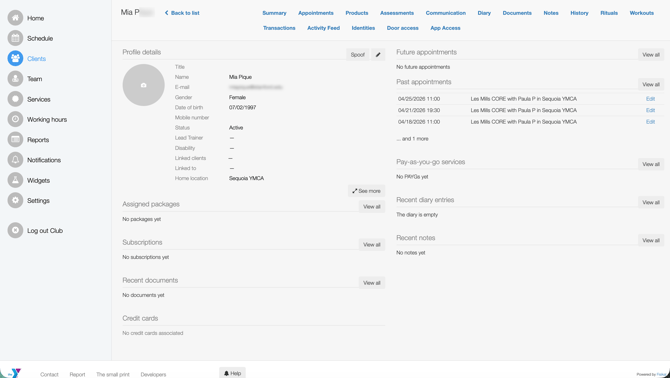
On each profile, confirm:
-
Name is correct
-
Email is correct
-
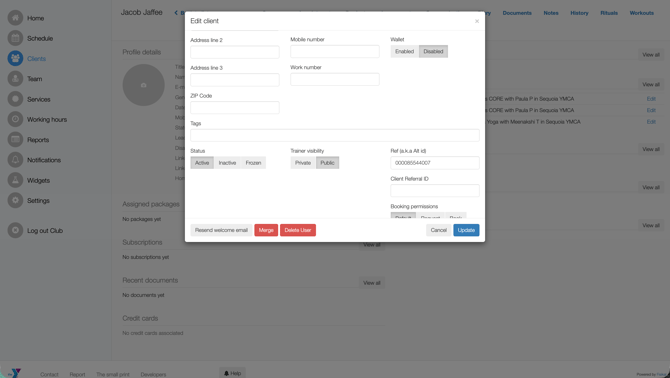
Alt ID (MMS / Personify ID) is correct
Important:
-
Do not proceed unless all values are accurate
Step 3: Check existing identities
-
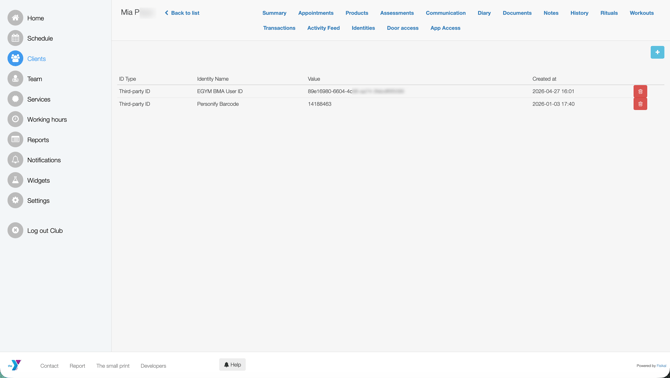
Navigate to the Identities tab
-
Locate the current EGYM identity
Check:
-
Does the identity match the correct EGYM User ID?
If not:
-
Continue to next step
Step 4: Remove incorrect identities
-
Delete the existing EGYM identity from both profiles
Important:
-
Both users must have incorrect identities removed
-
Do not leave any incorrect identity in place
Step 5: Add correct EGYM identity
-
Click the "+" button in the Identities tab
-
Select:
-
EGYM BMA User ID
-
-
Enter the correct identity value
Step 6: Validate identity creation
Ensure:
-
Identity is successfully created
-
No validation errors occur
Important:
-
EGYM identities must be unique across the platform
-
The system will block duplicates
-
Ensure no spaces before or after the ID
Step 7: Repeat for both users
-
Confirm each user now has the correct EGYM identity
-
Ensure there is no cross-assignment
Step 8: Confirm resolution
Once complete:
-
Users should be able to log in normally
-
Each user will be linked to the correct EGYM account
Important: Integration-specific behaviour (YMCA Triangle)
In some integrations, the Alt ID (MMS ID) takes priority over EGYM identity.
For YMCA Triangle x Personify:
-
Go to Client Summary page
-
Edit the profile
-
Verify the Alt ID field is correct
If incorrect:
-
Update it before testing login
Common mistakes to avoid
-
Not validating MMS data before making changes
-
Leaving incorrect identities on one profile
-
Attempting to reuse an EGYM identity already assigned
-
Including spaces in the identity value
-
Not checking Alt ID where applicable
Quick summary
To fix incorrect EGYM profile linking:
-
Validate user data
-
Remove incorrect identities
-
Reassign correct EGYM User IDs
-
Check Alt ID if required
-
Retest login