![White Logo Blue Banner copy-100.jpg]](https://knowledge.fisikal.com/hs-fs/hubfs/White%20Logo%20Blue%20Banner%20copy-100.jpg?height=50&name=White%20Logo%20Blue%20Banner%20copy-100.jpg)
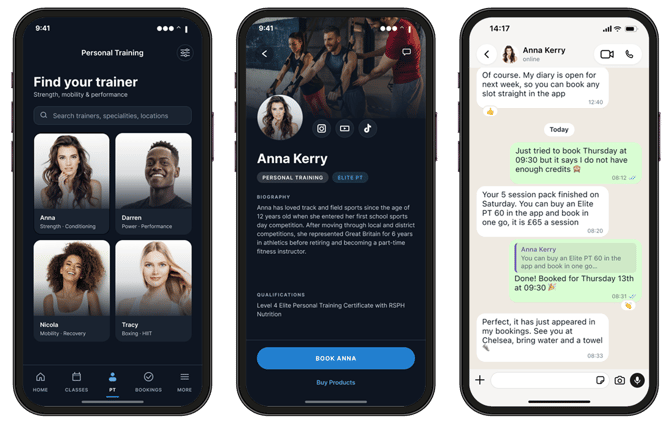
You can show a trainer's WhatsApp contact and social media links on their profile in the Member App. This makes it easy for members to message your trainers and follow them online.
What members will see
- WhatsApp: a WhatsApp option on the trainer's profile, so members can message the trainer directly.
- Social media: links to the trainer's Facebook, LinkedIn, TikTok, Instagram and Snapchat. Only the channels the trainer has added are shown.
Before you start
Check the following are in place. If you cannot see the WhatsApp option or the Social media channels section, these are the most likely reason.
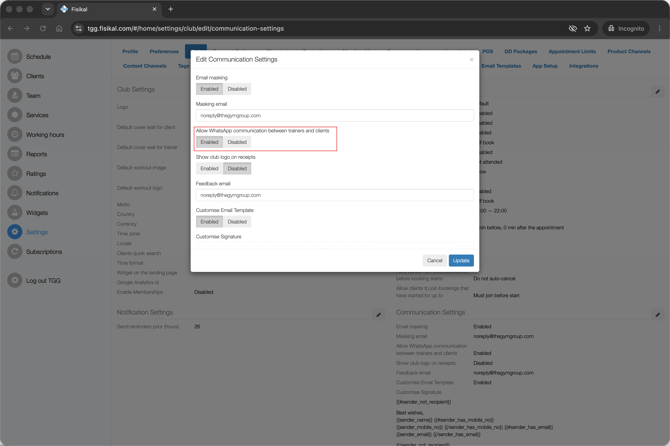
- WhatsApp is switched on for your club. Go to your club's Communications settings and turn WhatsApp on.
- Your role has permission. Go to Settings > User Permissions and make sure your role can view and edit social channels and WhatsApp details on team profiles.
- Trainers have permission (optional). If trainers will update their own links in the PRO app, make sure their role can view and edit social channels on their own profile.
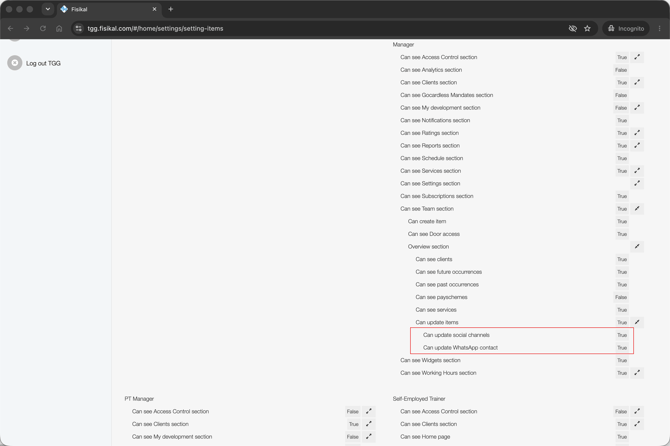
Please note: these permissions are off by default and are separate from the general permission to edit a profile.
Enable WhatsApp on a trainer's profile
- Go to Team and open the trainer's profile.
- Select Edit.
- Scroll down to the Mobile number field.
- Below the mobile number you will see the WhatsApp option. This is disabled by default.
- Switch WhatsApp on and check the number members should use is correct.
- Select Save.
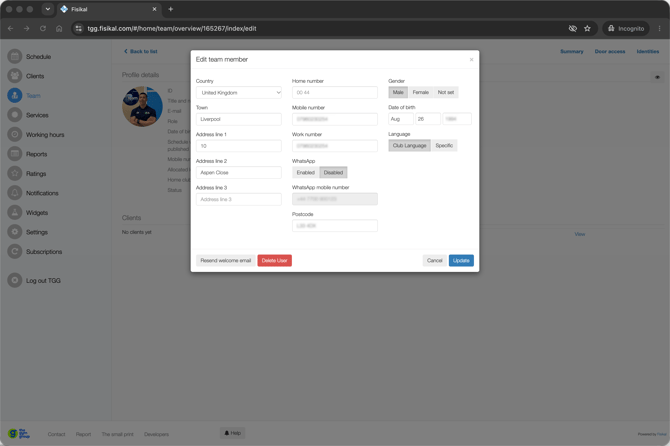
Members will now see the WhatsApp option on this trainer's profile in the app.
Add social media channels
- While editing the trainer's profile, scroll to the Social media channels section at the bottom of the page.
- Enter the full web address for each channel the trainer would like to share:
- TikTok
- Snapchat
- Leave a channel blank if the trainer does not use it. It will not appear in the app.
- Select Save.
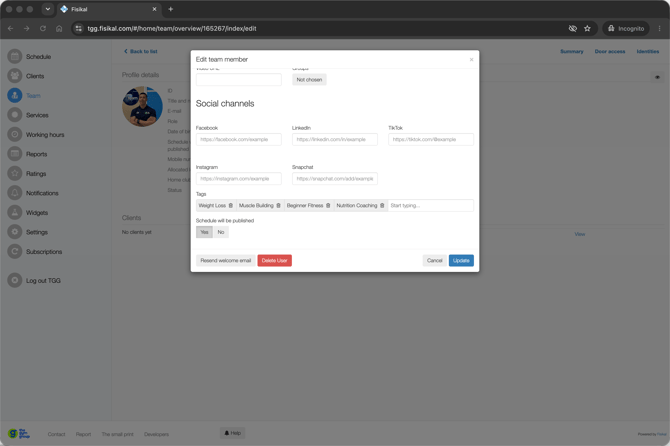
Tip: use the full address, for example https://www.instagram.com/trainername. If a link is not accepted, check it begins with https:// and has no spaces.
How trainers update their own links in the PRO app
Trainers can keep their own links up to date without asking a manager.
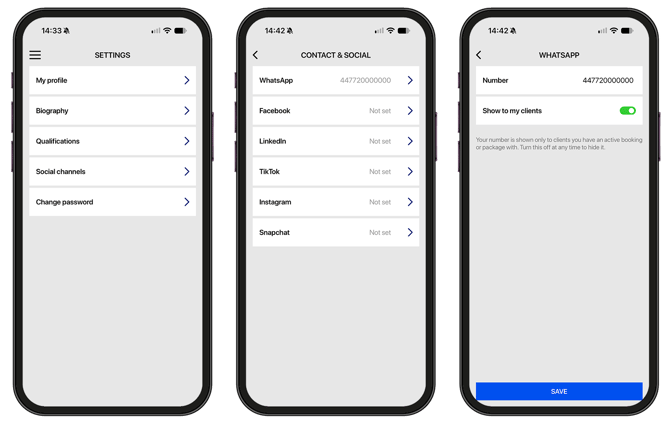
- Open the PRO app and go to your profile.
- Open the Contact and Social section.
- Add, change or remove your social media links.
- Save your changes.
Troubleshooting
| Issue | What to check |
|---|---|
| I cannot see the WhatsApp option or the Social media channels section | Your role's User Permissions. These are off by default. |
| WhatsApp is enabled but members cannot see it | WhatsApp is switched on in your club's Communications settings, the trainer has a mobile number, and the profile has been saved. |
| Some social channels are not showing in the app | Only channels with a link are shown. Check a link has been saved for that channel. |
| A link will not save | Use the full web address, beginning with https:// |
| A trainer cannot see Contact and Social in the PRO app | The trainer's role needs permission to view and edit social channels on their own profile. |
If you need a hand, please contact us at support@fisikal.com.