![White Logo Blue Banner copy-100.jpg]](https://knowledge.fisikal.com/hs-fs/hubfs/White%20Logo%20Blue%20Banner%20copy-100.jpg?height=50&name=White%20Logo%20Blue%20Banner%20copy-100.jpg)
Step #1
Sponsors are mapped to Locations in Fisikal, so for each sponsor you will need to create a new location.
To create a new location administrators should go to Services > Locations and select the "+" button. This will load the create location form. Make sure you remain on the "General" tab to start with.
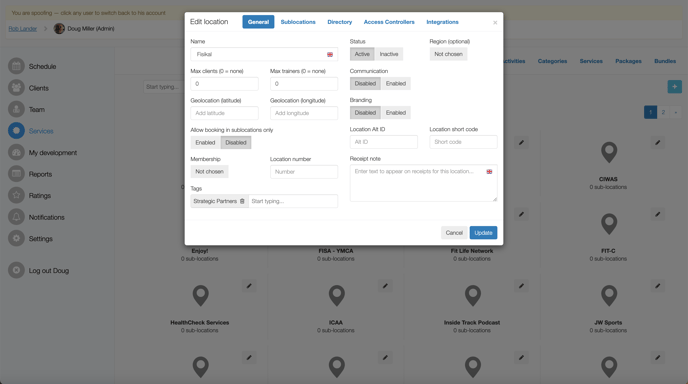
- Enter the Name of the sponsor
- Apply one of the following tags:
- Associations
- Commercial Partners
- Media
- Strategic Partners
The image below shows a location that is correctly entered.
Step #2
Select the "Directory" tab and do the following:
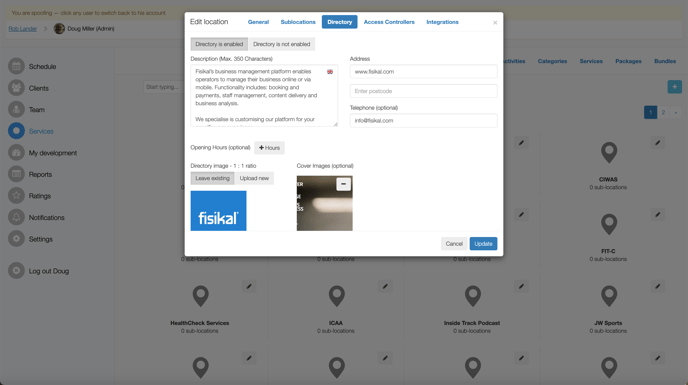
- Enter the description of the sponsor
- Add the website address in the "Address" field
- Add the contact email address in the "Telephone" field
- Add a square image to the "Directory image"
- Add rectangular imagery to the "Cover Images"
The screenshot below shows an example of this correctly applied.
Step #3
This last step will allow you to configure if the Sponsor should have a link to show a PDF on the page or not.
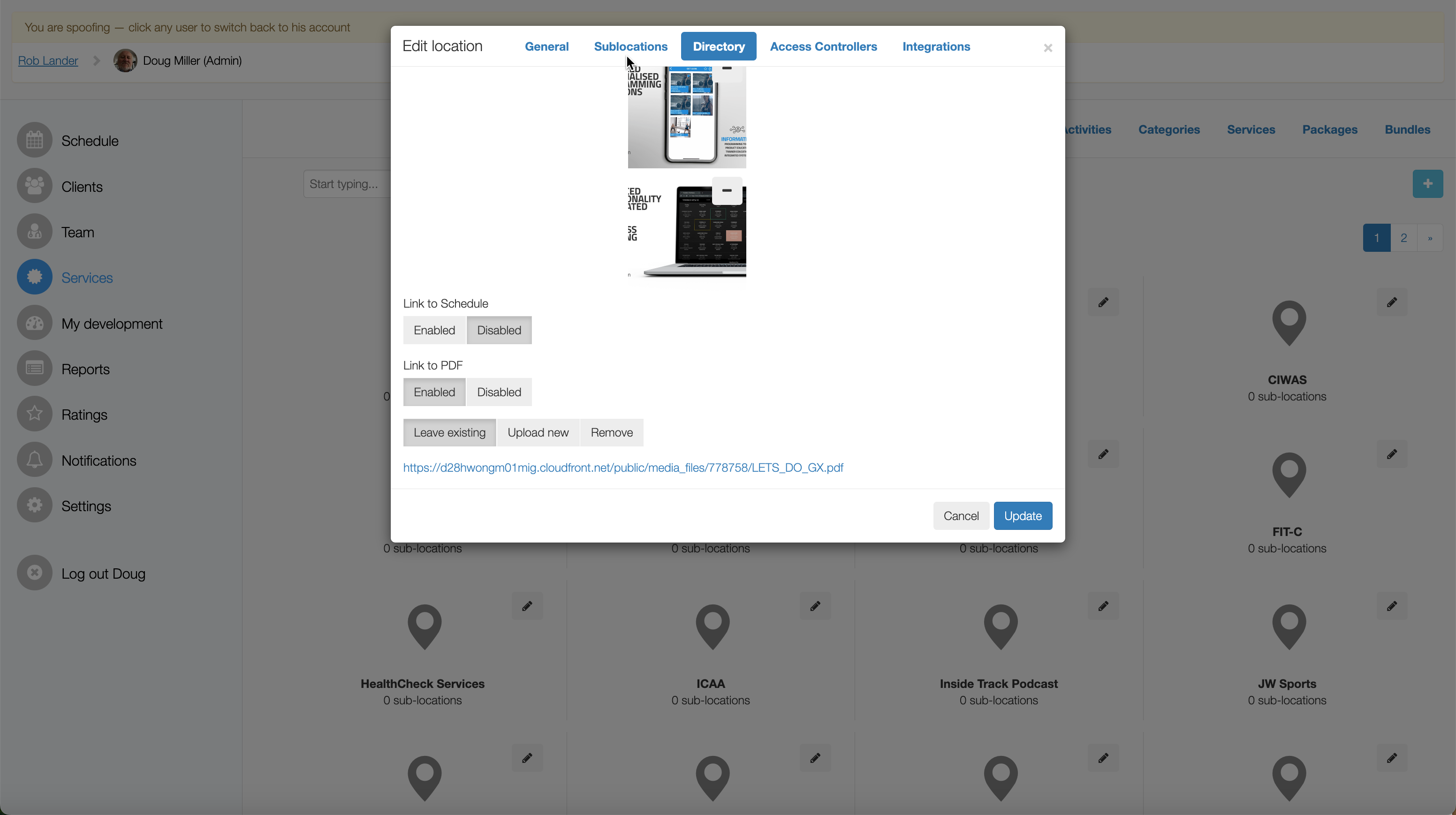
- On the "Link to Schedule" option select "Disabled"
- If the Sponsor HAS a PDF to upload
- Select "Enabled" on the "Link to PDF" option
- Select upload and attach the PDF
- Note: PDF will be shown in mobile view, so make sure it is optimised for viewing in a mobile app
- If the Sponsor DOES NOT have a PDF to upload
- Select "Disabled" on the "Link to PDF" option